Getting Started with RouteTower
Getting your team set up with RouteTower takes just a few minutes. Here's everything you need to know.
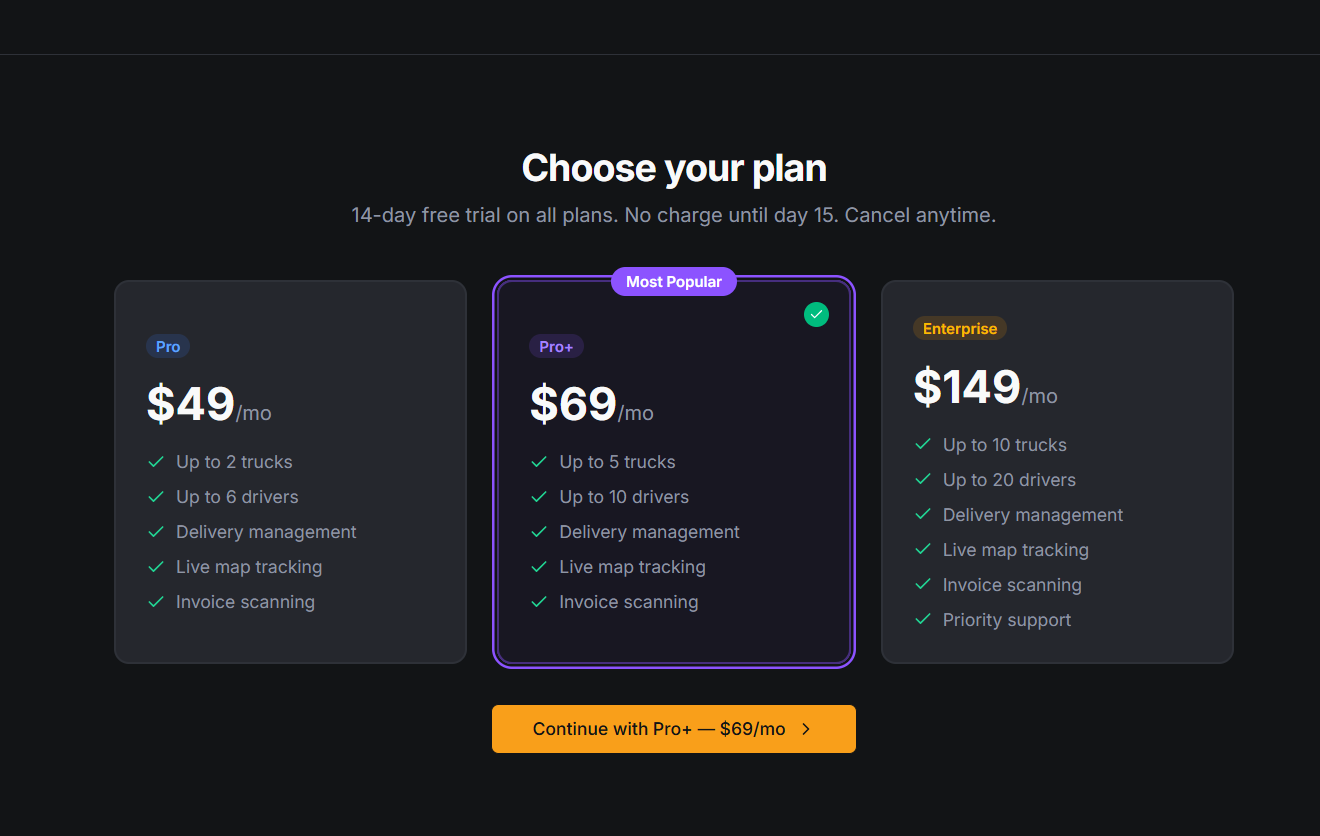
Step 1: Choose Your Plan
Visit our pricing page and select the plan that fits your business. Once you complete sign-up, your account is created instantly and you can start scheduling deliveries right away. No hardware or installation required.
Step 2: Set Up Your Manager Portal
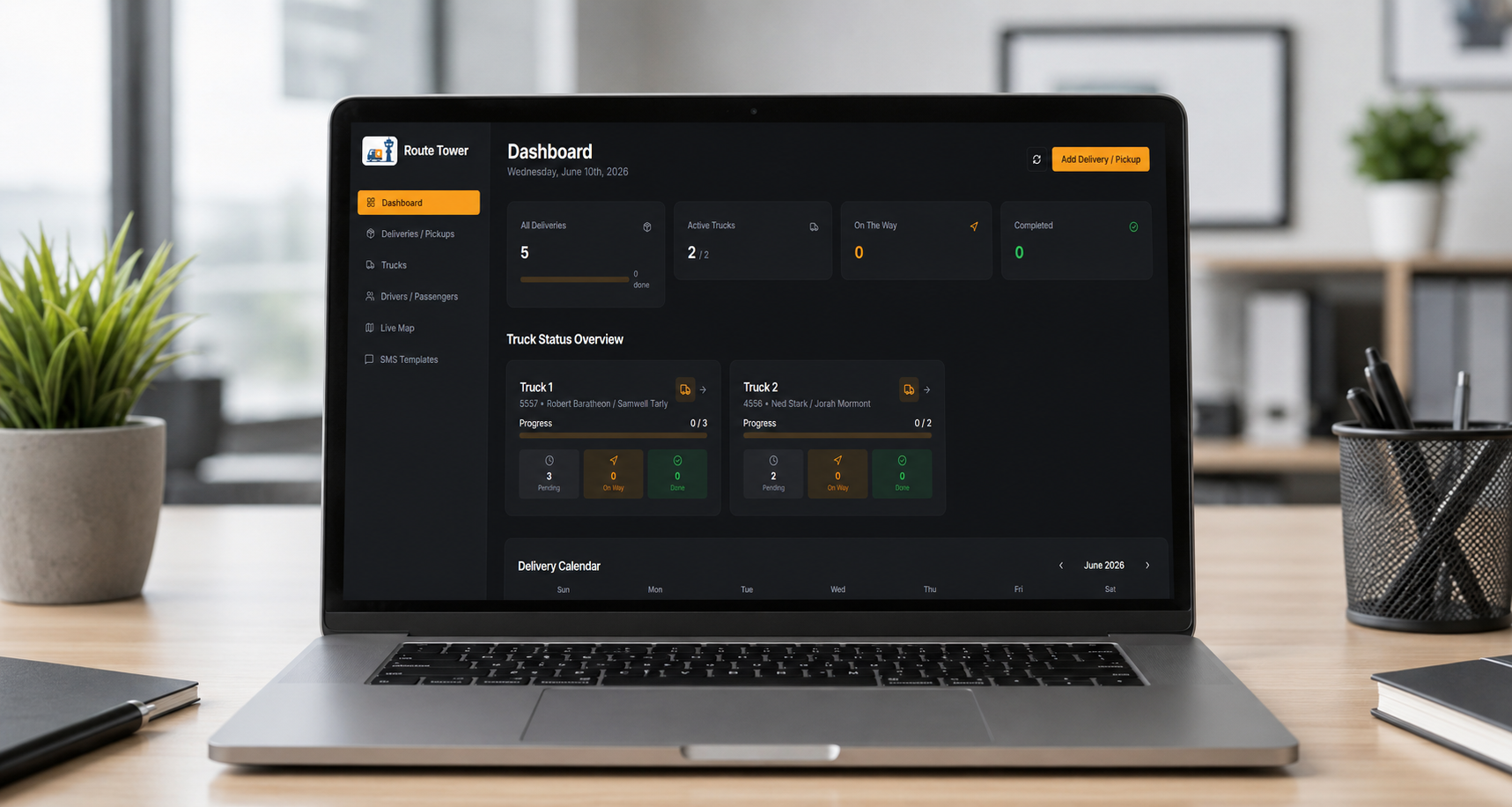
The manager portal is a web-based app — that means it runs in any web browser on any device. You can use it on your desktop computer at the warehouse, your laptop, or even your phone while you're on the go. There's nothing to download.
Once your account is active, log in at https://delivery-dispatcher-acecarling.replit.app/login using the username and password you created during sign-up. From there you can:
Add and manage your trucks and drivers
Schedule deliveries and assign them to trucks
Watch your drivers' locations on the live map
View delivery history
And send Google Review Requests
Step 3: Download the Driver App
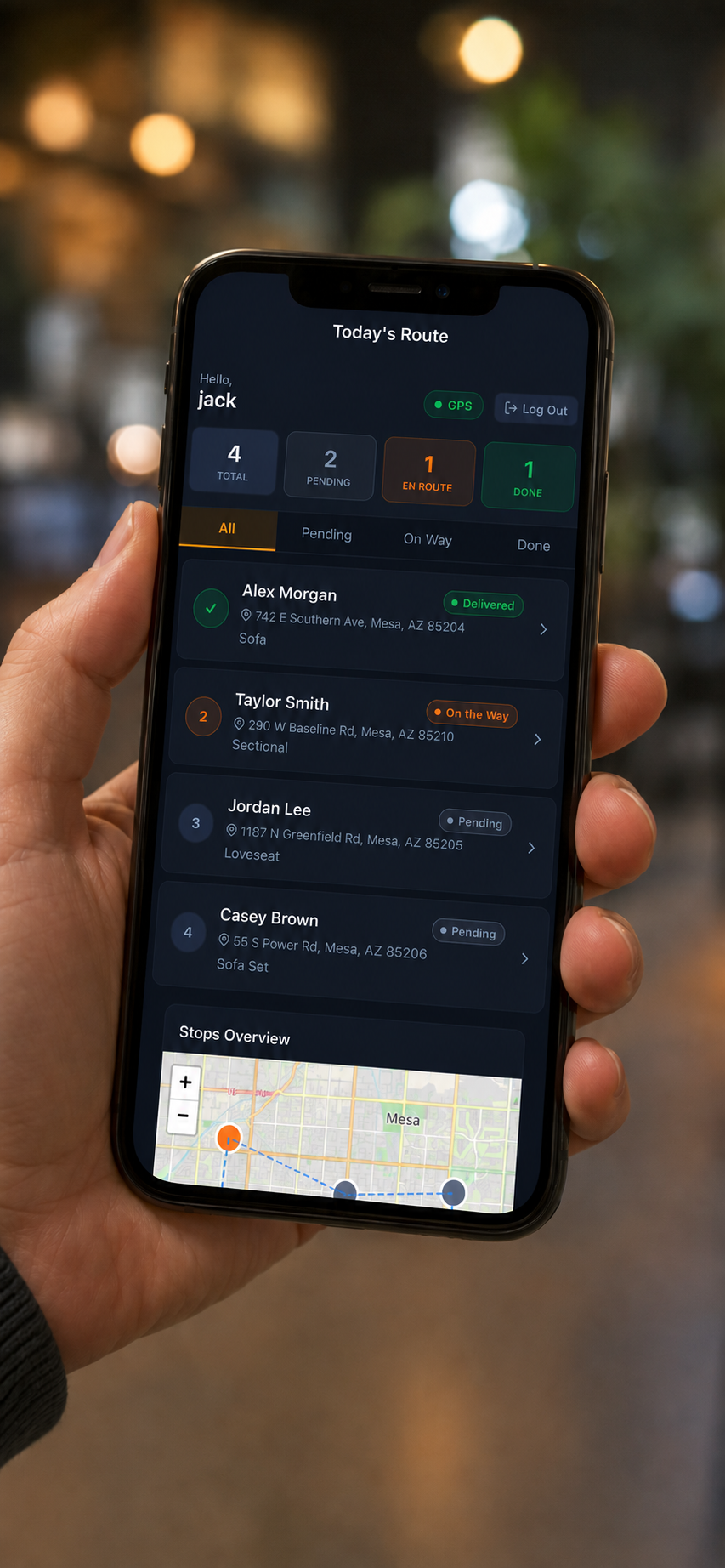
Your drivers use a separate app called Route Tower Driver, available for free on iPhone or Android.
iPhone: Search "Route Tower Driver" in the App Store.
Android: Search "Route Tower Driver" in the Google Play Store.
Once downloaded, drivers log in with the username and password you create for them in the manager portal under Drivers & Trucks.
Grant the Right Permissions
When a driver opens the app for the first time, they'll be asked to allow a couple of permissions. Here's what each one is for and why it matters:
📍 Location — Set to “Always Allow.”
Route Tower Only tracks location when the driver is logged in.
Location set to “Always Allow” powers the live map in your manager portal. When a driver is on their route, the app shares their GPS location so you can see where every truck is in real time. For the best experience, drivers should select "Always Allow" so their location updates even when the phone screen is locked or they switch to another app like Maps or Messages. Without this, the live map won't update while they're driving. When the driver logs out of the app the GPS tracking is turned off.
For best locations updates, in the phone setting you can,
Allow location: Always
Turn on Precise Location
Keep Low Power Mode off
Android only: set battery to Unrestricted
Samsung only: remove from Sleeping Apps
📷 Camera
Drivers use the camera to photograph invoices and delivery confirmations directly from the app. These photos are attached to the delivery record so you have a permanent record. The app will only access the camera when the driver taps the photo button — it is never running in the background.
🖼 Photo Library
This allows drivers to attach an existing photo from their camera roll to a delivery if needed. Like the camera, this is only accessed when the driver chooses to use it.
Step 4: You're Ready to Go
That's it! Once your drivers are logged in and permissions are set, deliveries you schedule in the manager portal will automatically appear on their app each morning. As they work through their route — marking stops on the way, collecting signatures, and completing deliveries — your manager portal updates in real time.
If you have any questions getting set up, reach out to us at aaron@routetower.com